
A Rotating Shift repeats over several weeks — for example, Week 1 Days and Week 2 Nights. Once employees are assigned, Timerack automatically follows the correct week for their schedules, timecards, rounding and alerts.
Rotating shifts are set up on the Shift Management page in portal Settings and assigned to employees the same way as any other shift. For standard (weekly) shifts, see Add a Shift or Edit an Existing Shift.
Create a rotating shift
1) Select Settings in the navigation menu to the left and then select the Shift Management option.
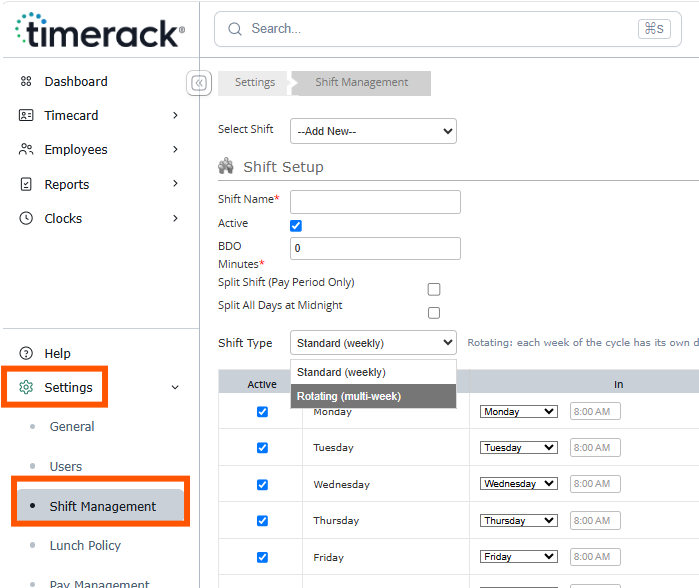
2) Click the Select Shift dropdown menu and choose Add New (or select an existing shift to convert it).
3) Enter a name for the shift. Shift Name will display on employee timecards.
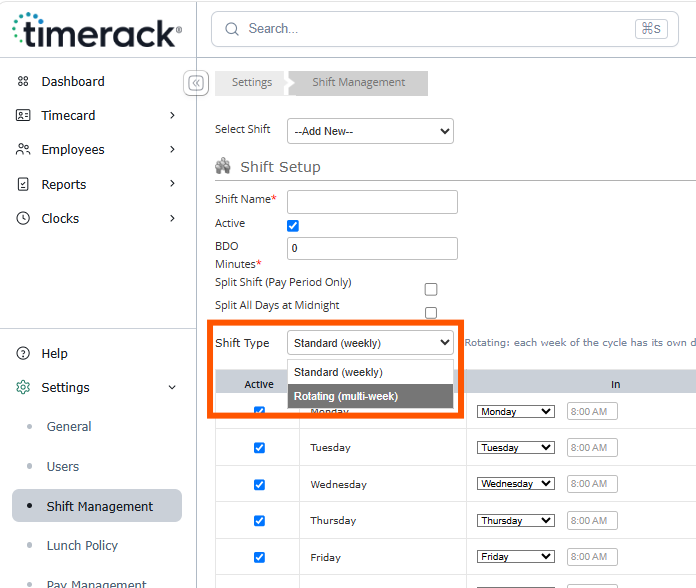
4) Set Shift Type to Rotating.
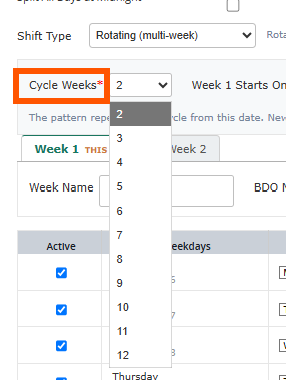
5) Enter the number of Cycle Weeks (2–12).
6) Choose the Week 1 Starts On date. This tells Timerack where the cycle begins. It defaults to your schedule start day.
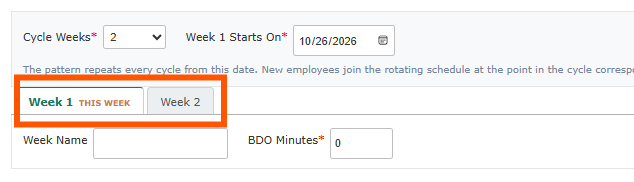
7) Click each Week tab and enter that week's start, end and lunch times. You can also:
- Give the week a name (for example, Days or Nights). The name displays on the employee's Shift tab.
- Unmark the Active checkbox for any day off.
- Use Copy Week to copy one week's times to another.
8) Enter the BDO Minutes for each week.
| Overnight weeks: If a week has shifts that end after midnight, a helper displays under the BDO field and recommends a value — usually 720 (noon). Click Use 720 to apply it, or enter your own value. See Business Day Offset (BDO) Minutes. |
9) Review the preview (it shows two full cycles), then click the Save button.
The shift is now available to assign to employees. In shift dropdowns it displays with (Rotating) after its name.
Assign employees to a rotating shift
Assign a rotating shift the same way as any other shift — from the Shift menu on the employee's profile, with Mass Update Policies or Shifts, or through an import. See Assign an Employee to a Shift.
- New employees join the rotating schedule at the point in the cycle corresponding to their start date. For example, someone hired during a Nights week starts on Nights and switches with the rest of the team.
- Schedules begin on the employee's hire date or payroll start date, whichever is later.
- Approved leave days are skipped automatically.
The Employee Shift tab
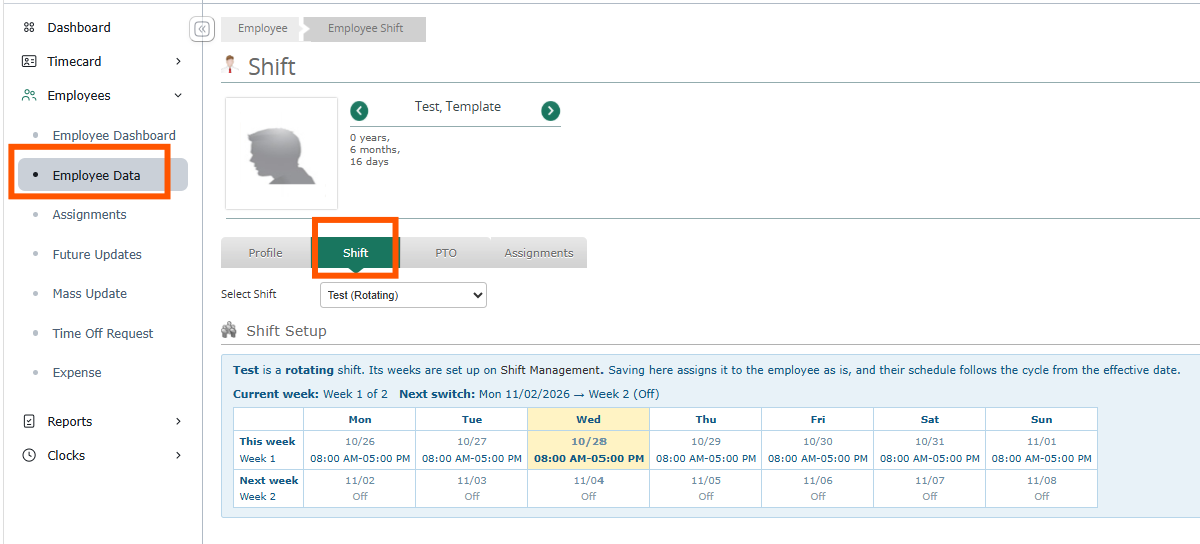
When an employee is on a rotating shift, the weekly rows on their Shift tab are read-only — rotating shifts are edited only on Shift Management. Instead, the tab shows:
- Current week — for example, Week 2 of 2 · Nights
- Next switch — the date and the week it switches to
- A table of this week's and next week's times, with today highlighted
Clone a shift for an opposite team
1) On Shift Management, select the shift and click Clone.
2) Enter a name for the new shift. It defaults to “[name] (copy)” and must be unique.
3) For a rotating shift, you can also choose:
- Flip weeks (2-week cycles) — Team A (Week 1 Days, Week 2 Nights) becomes Team B (Week 1 Nights, Week 2 Days), so the two teams always work opposite weeks.
- Start the clone on Week N (3+ week cycles) — the weeks stay in order but start from the week you choose.
The clone starts with no employees, and the original shift and its employees are not changed. Standard shifts can be cloned too.
Edit a rotating shift that is in use
When you save changes to a rotating shift that employees are already assigned to, you will be asked for an Effective Date (default: today).
- Schedules for everyone on the shift are updated from that date.
- Punches on open timecards are re-paired from that date using the new times.
- Processed, locked or approved timecards are not changed.
- Manually created time pairs are kept.
Changing the shift type or number of weeks:
- Standard → Rotating: Week 1 is pre-filled with the shift's current times.
- Rotating → Standard: after you confirm, Week 1 is kept and the other weeks are removed.
- Fewer Cycle Weeks: you will be asked to confirm before weeks are removed.
How rotating shifts work at the clock and on timecards
- Overnight hours report to the day the shift started, based on that week's BDO.
- Week switches: a shift that starts before the switch stays on the day it started (for example, In Sunday 7:00PM, Out Monday 3:00AM reports to Sunday). The new week's schedule applies from the next shift.
- Alerts and shift rounding use that day's scheduled times.
- Shift prompt at the clock: employees still see the shift prompt, preselected to their rotating shift. If they pick a different shift (for example, to pick up a shift), it applies to that punch pair only — their rotating assignment does not change.
- Schedule pages show the correct week for future dates.