This article explains how to enable Mobile Timecard Editing for employees.
How to Enable Mobile Timecard Editing
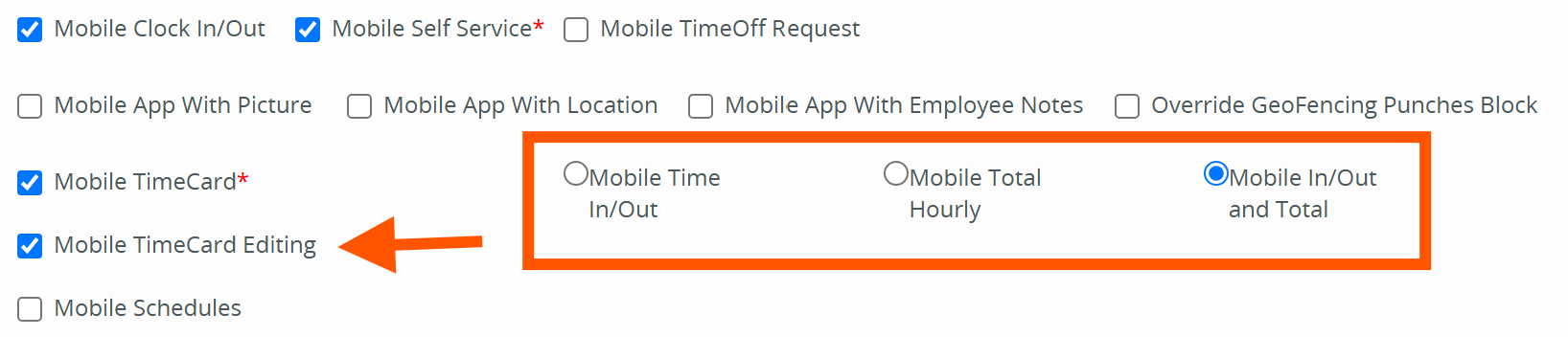
1. If you have Mobile Timecard enabled for the employee, a checkbox will appear that displays "Mobile Timecard Editing."
2. When selected, the employees will then have the ability to edit their timecards on the mobile app.
Note: Only portals with Mobile activated will have both the Mobile Timecard and Mobile Timecard Editing options.
3. Once Mobile Timecard Editing is selected, you will need to specify whether you would like the employee to be able to edit In/Out time entries, total hour entries, or both.
**Time entered by an employee on their Mobile App will display in the Source From and Source To columns on their timecards as "Mobile Edit."
How to Manage Mobile Timecard Editing
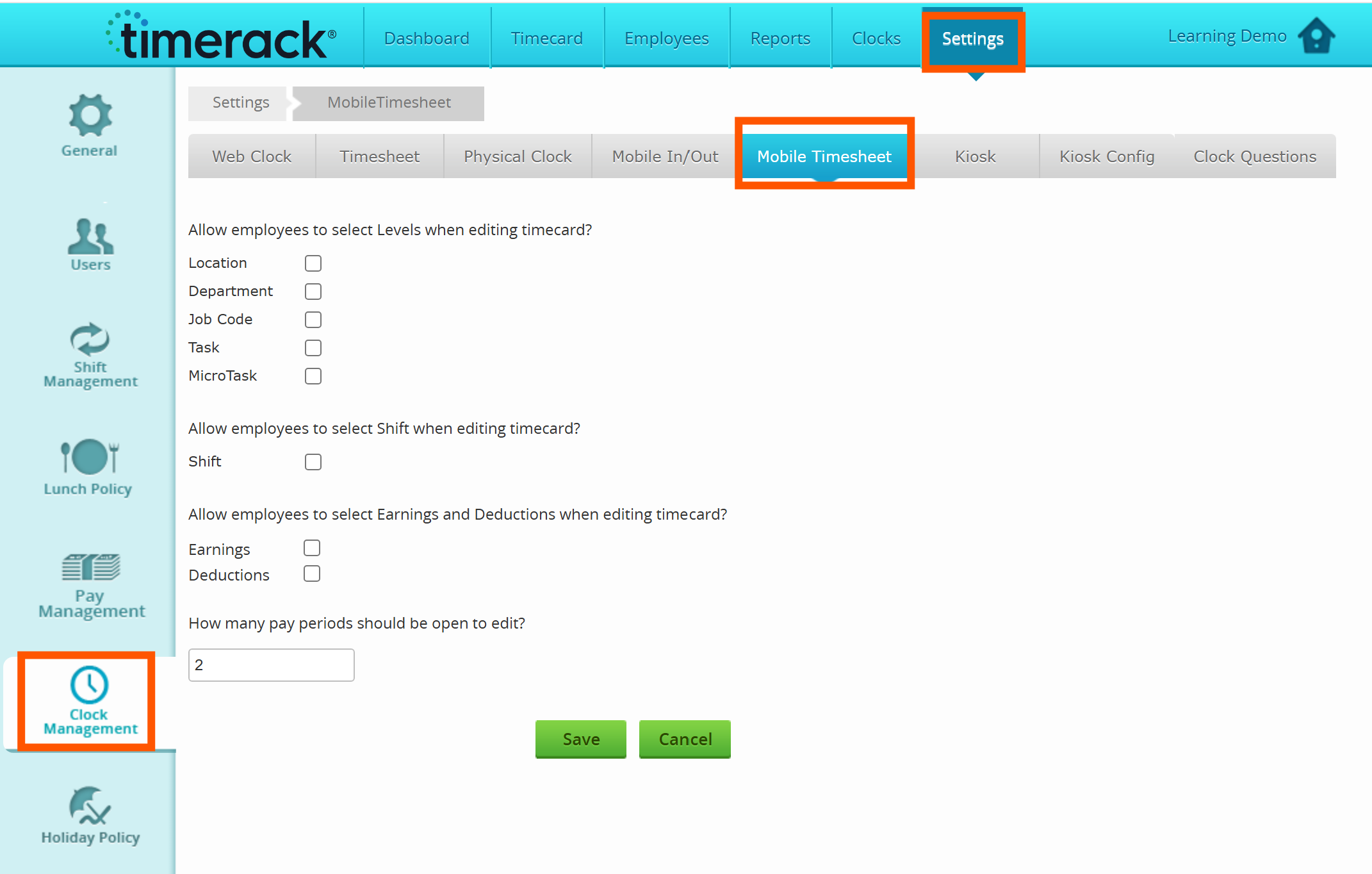
To enable various employee permissions around Mobile Timesheet:
1. Navigate to Settings.
2. Select Clock Management.
3. Select the Mobile Timesheet tab.
4. From this page, you can select which levels the employees can edit, if you will allow them to select shifts when editing their timecard, if employees will have the ability to add earnings and deductions when editing their timecard, and also how many pay periods should be open for the employee to edit.