Managing Attestations
This article explains how to enable Attestations for Approvals or Terms & Conditions, manage permissions around attestations, create the attestations, and display attestations within the system for users and employees.
Locating Attestation Management
To locate where to manage attestations in the system:
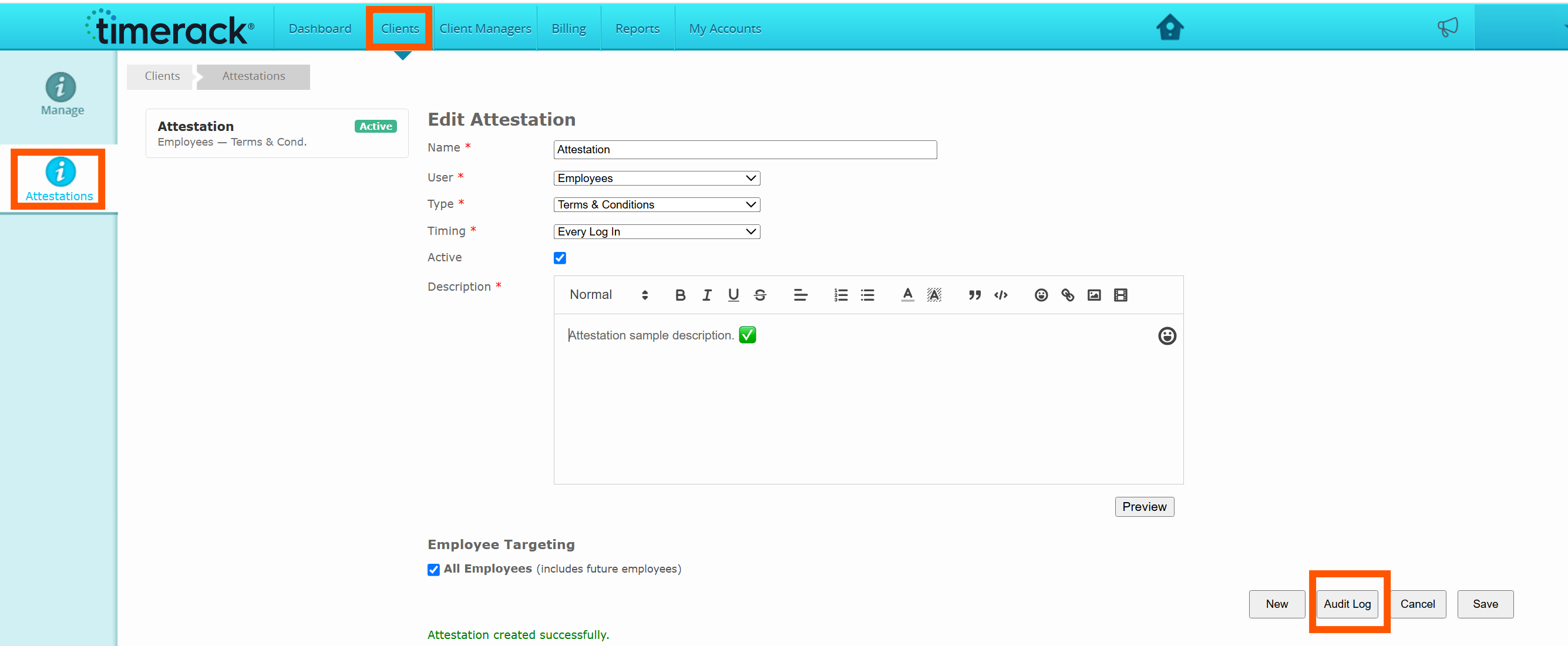
1. Navigate to the Clients tab.
2. Select Attestations.
Note: Only Users with Full Access or Read Only will be able to access the Attestations page. By default, Partner users will have Full Access unless changed.
Enabling Attestation Permissions
To enable various permissions around Attestations for Users:
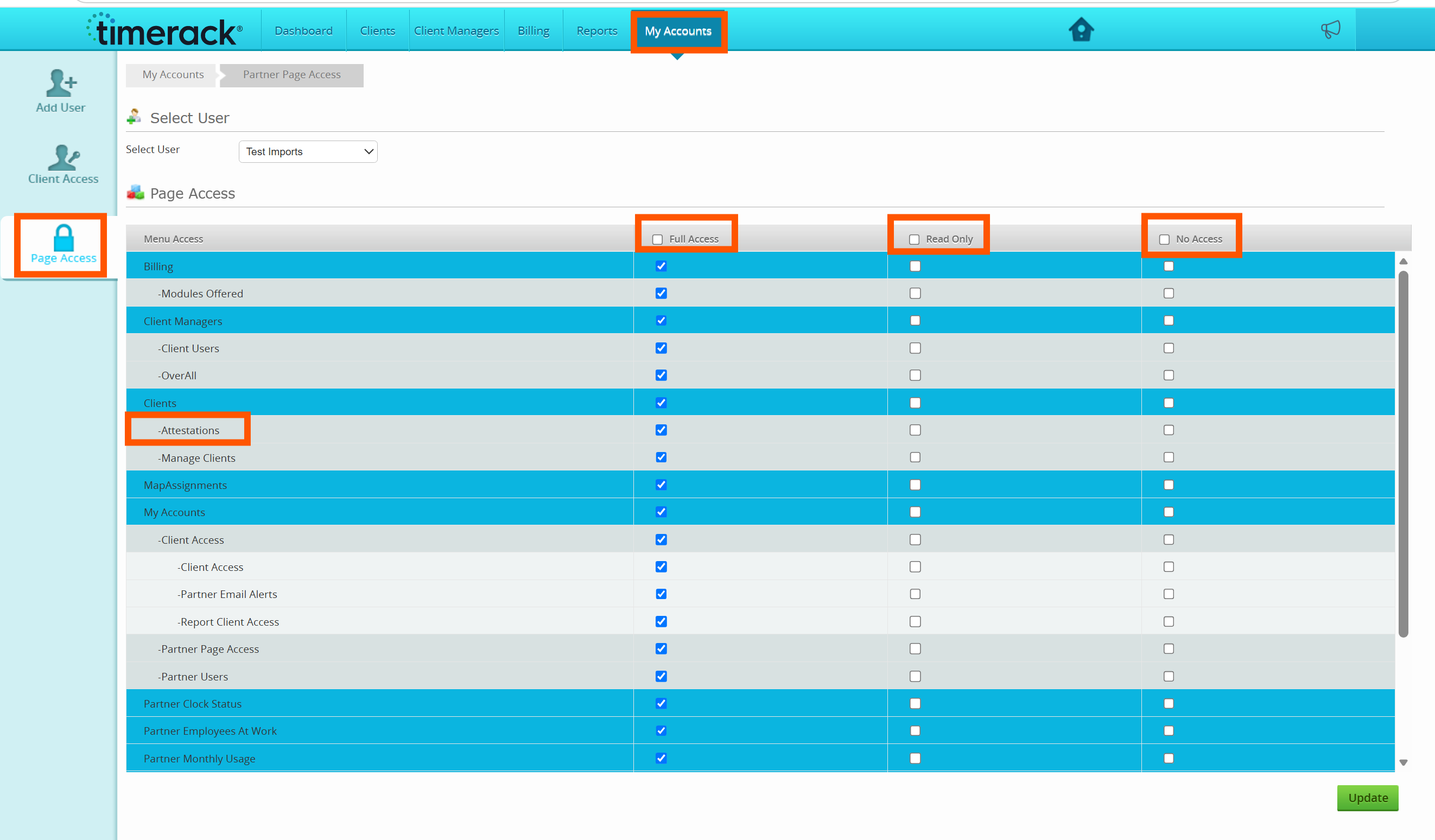
1. Navigate to the My Accounts tab.
2. Select Page Access.
3. Select the User whose permissions you would like to enable from the dropdown.
4. Check the box next to Attestations under Clients for the type of permission you would like the user to have (Full Access, Read Only, or No Access).
Creating Attestations
To create an attestation:
1. Navigate to the Settings tab.
2. Select Clients.
3. Select Attestations on the left menu.
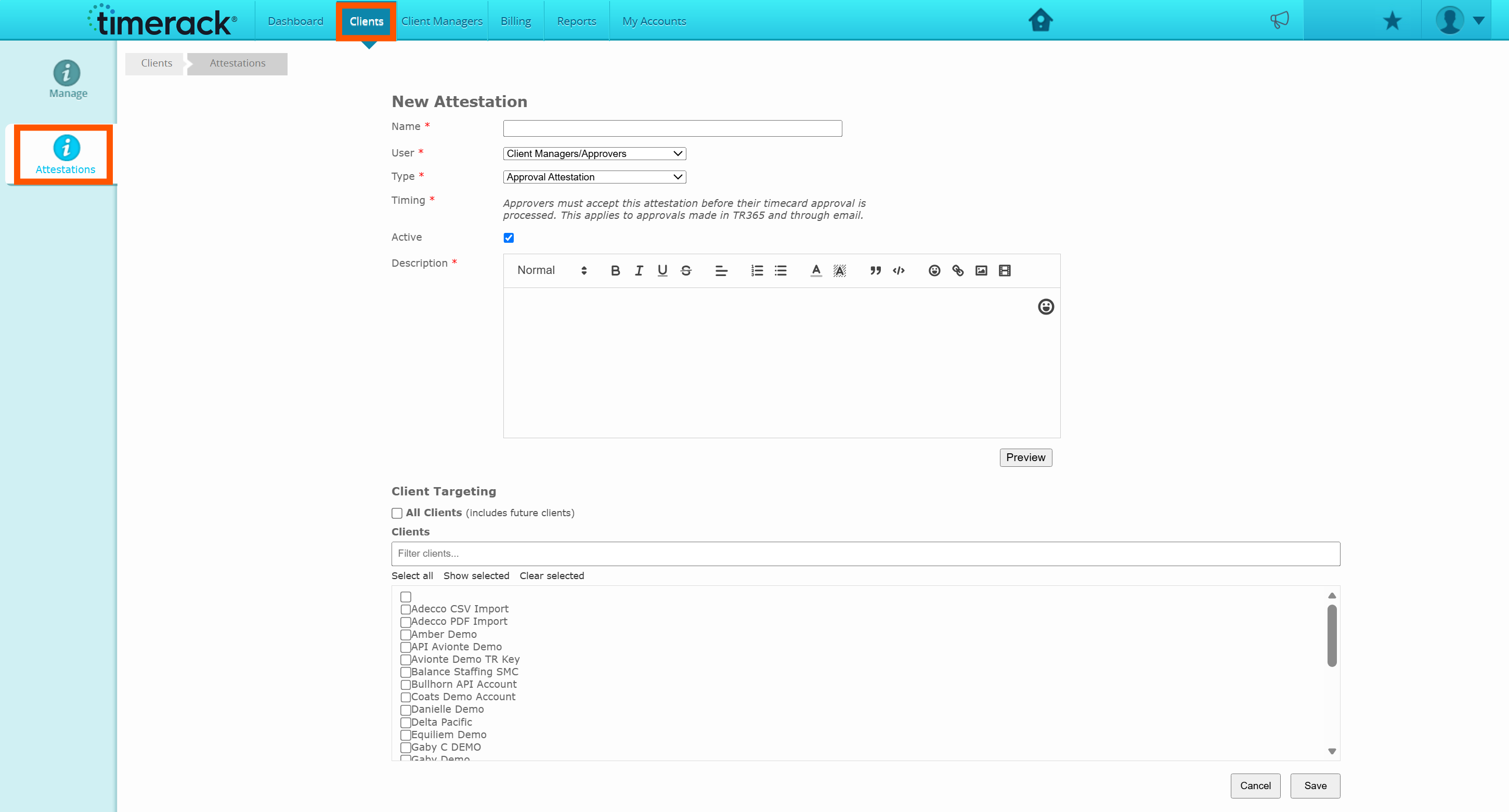
4. From this page you will be able to begin creating the Attestation.
-Enter a name, user type (client managers or employees), select the type of Attestation (Approval or Terms & Conditions), and select timing for Terms & Conditions attestations.
5. In the Description field, enter what you would like to be displayed for the Attestation.
-You can preview the displayed Attestation by selecting the Preview button to the bottom right of the Description box.
6. You can then select whether the Attestation should be displayed to All Clients/Employees, or just a select few; these can be selected from the populated list at the bottom of the Attestation page.
Attestation Display
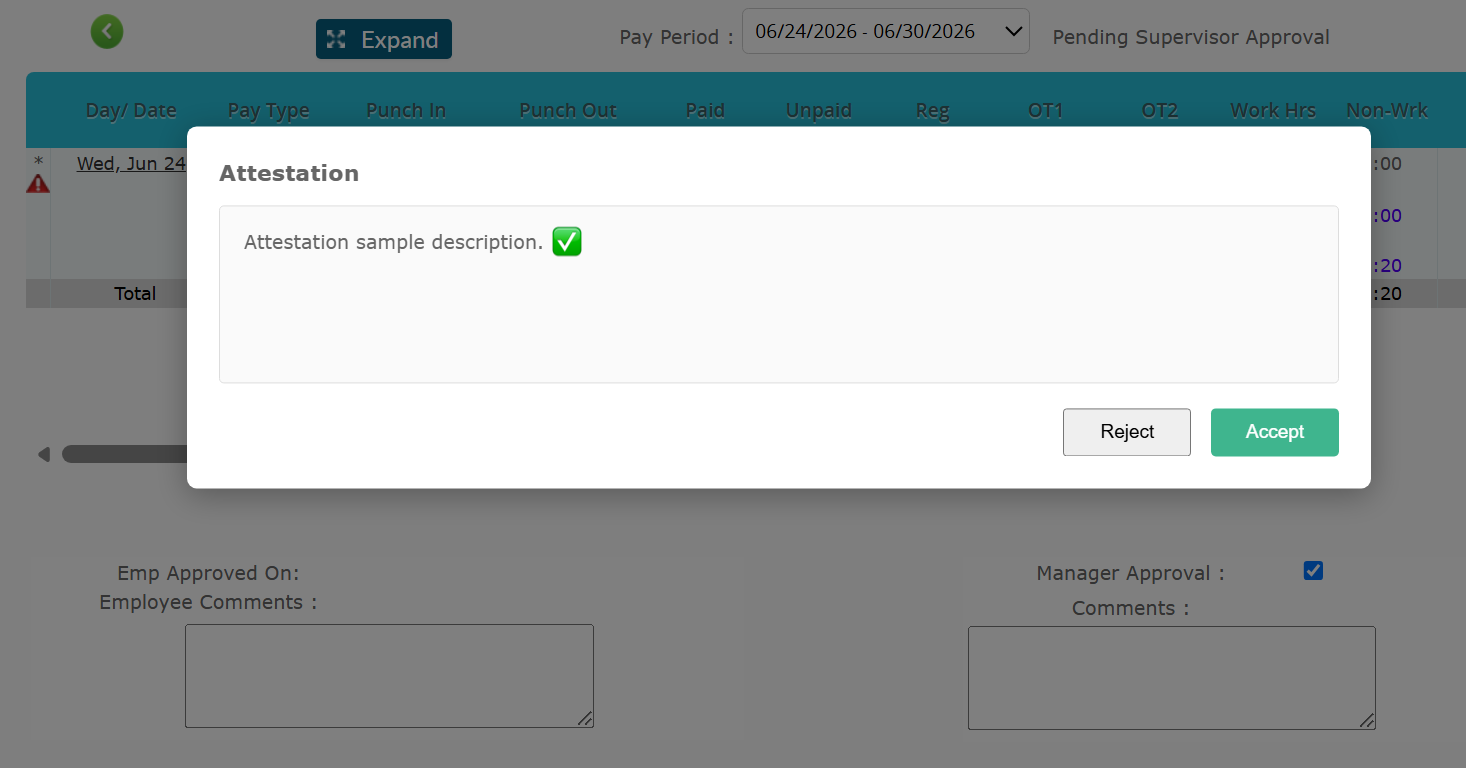
Below is an example of the attestation display (specific to approvals in this example).
Attestations can be rejected. In the case of Approval Attestations, if the Attestation is rejected, the timecard will not be approved.
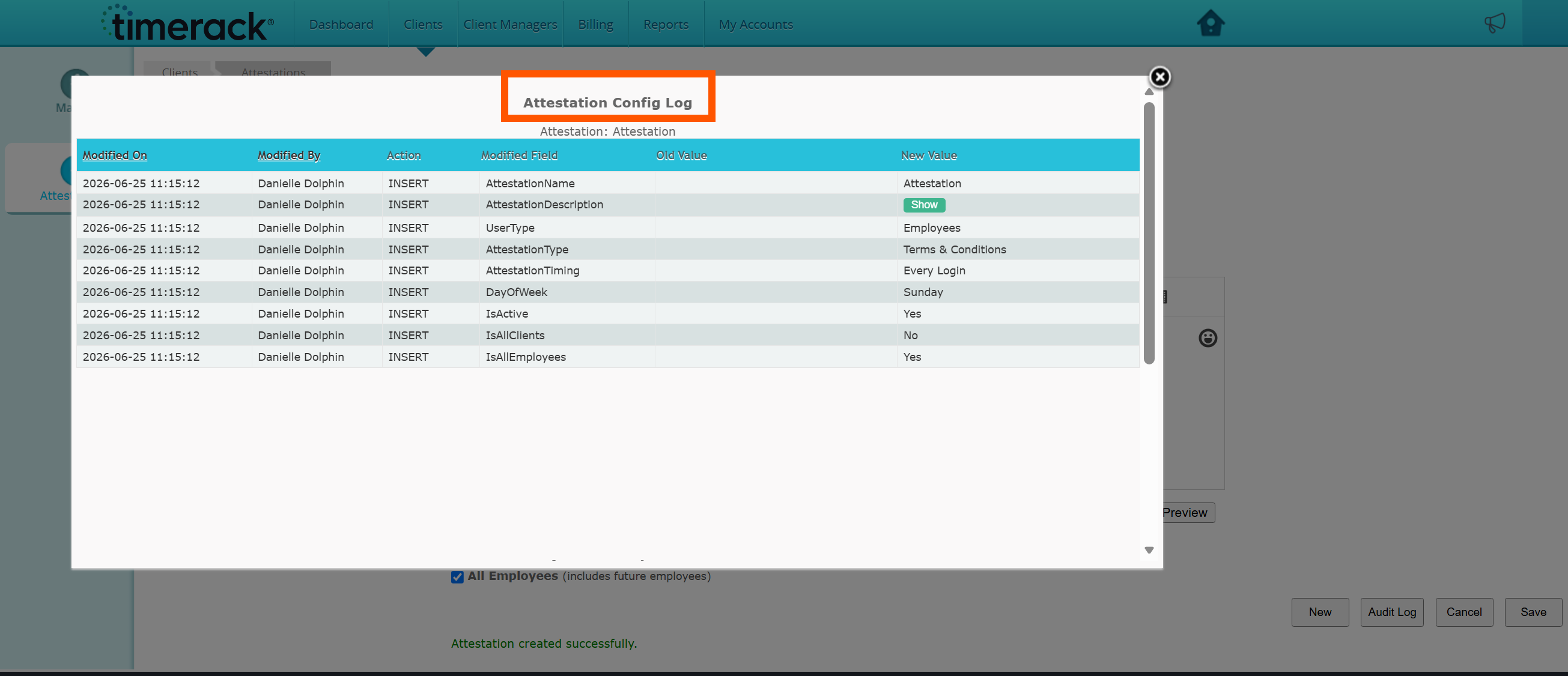
Attestation Audit Log
Changes to any attestation can be viewed via the Attestation Audit Log. To view this log:
1. Navigate to Clients.
2. Select Attestations from the left menu.
3. Select the Audit Log button on the bottom right of the page.