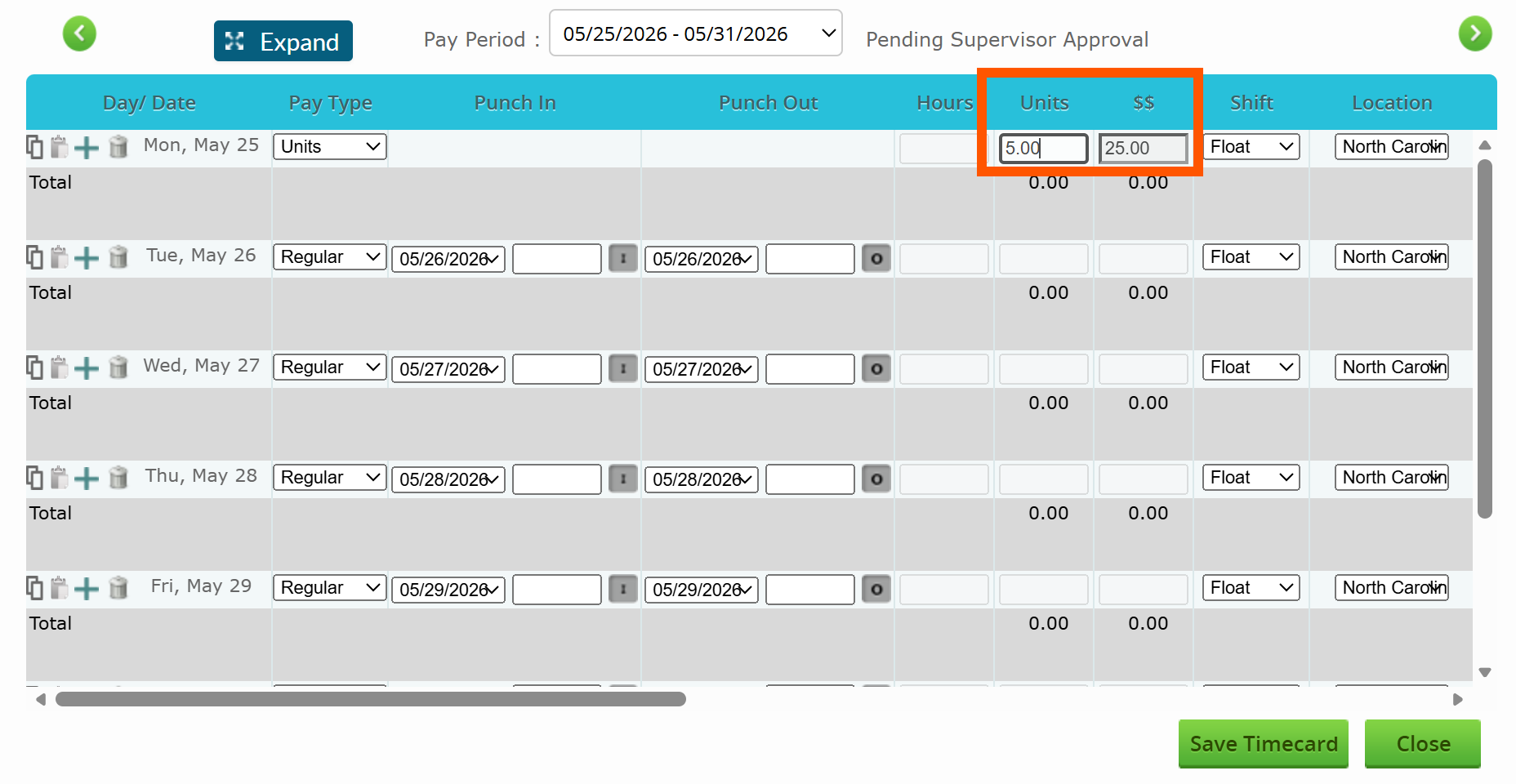
Managing Units on Pay Categories and Timecards
This article explains how to enable Units for pay categories, enter Units on employee timecards, manage Unit Rates on employee assignments, and pull reports that display the Units and Unit Rates.
Enabling Units for a Pay Category
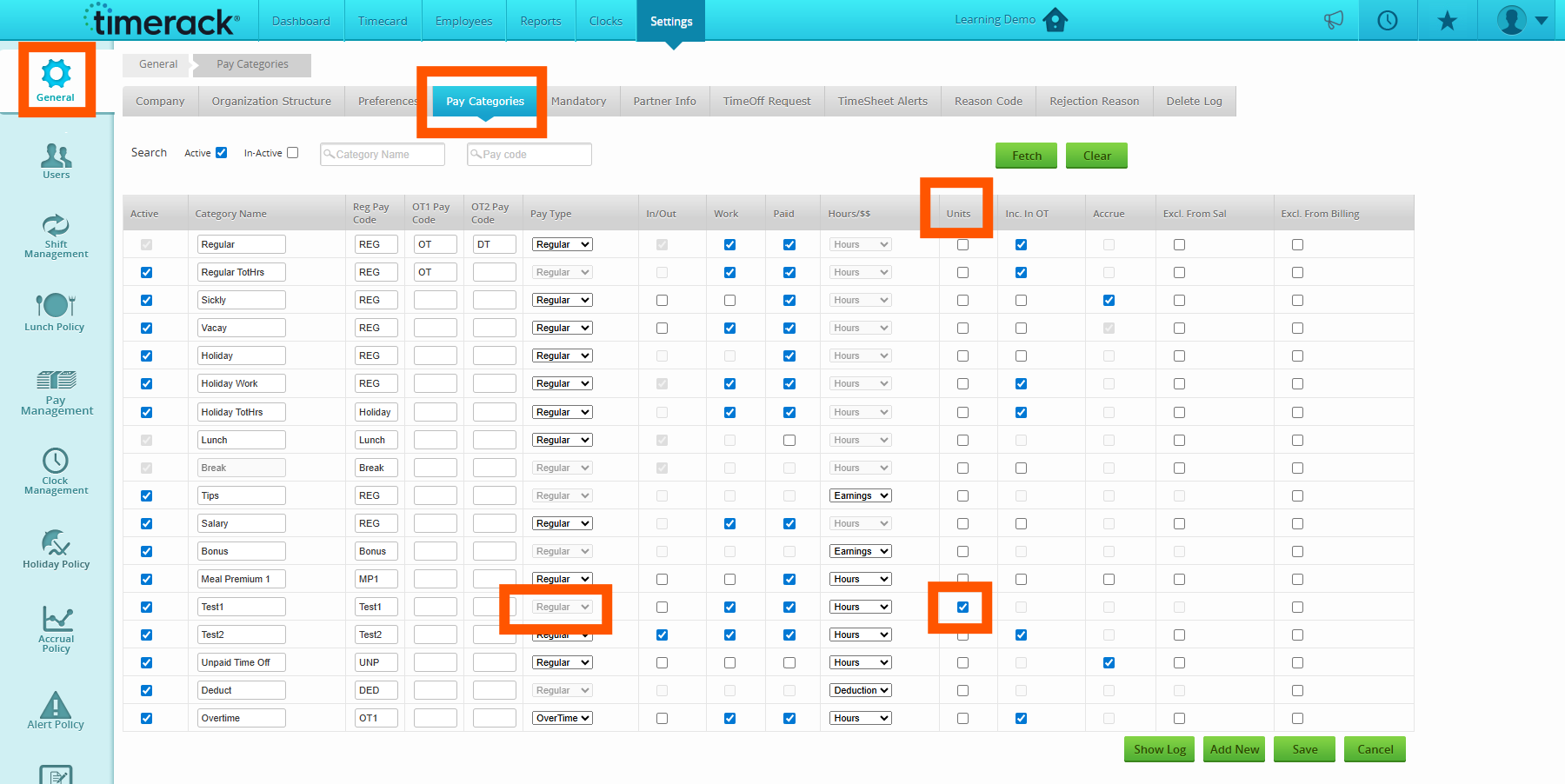
To allow a pay category to track Units on employee timecards:
1. Navigate to the Settings tab.
2. Select General.
3. Select Pay Categories.
4. Locate the Units column.
5. Check the box next to the pay category you would like to track as Units.
6. Select whether you would like this pay category to be Hours, Earnings, or Deductions.
Note: Units can only be enabled for pay categories configured as Regular hours.
Once enabled, the selected pay category will display a Units field on employee timecards.
Entering Units on an Employee Timecard
To add or edit Units on a timecard:
1. Navigate to the Timecard tab.
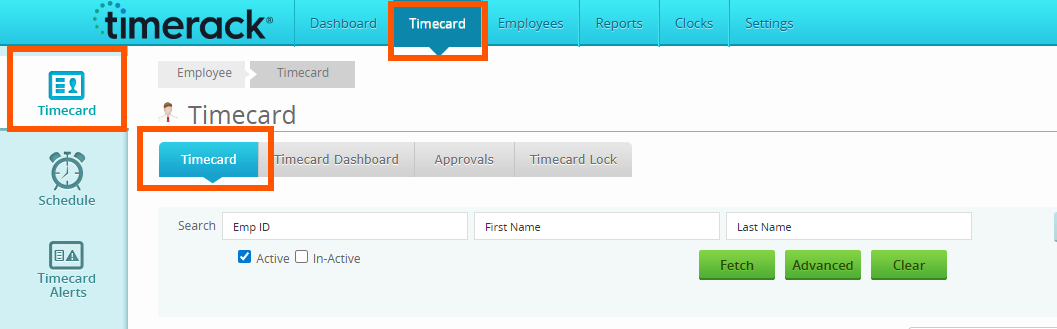
2. Select the employee timecard you would like to edit.
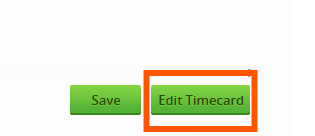
3. Click Edit Timecard.
4. From the Pay Type dropdown, select a pay category that has Units enabled.
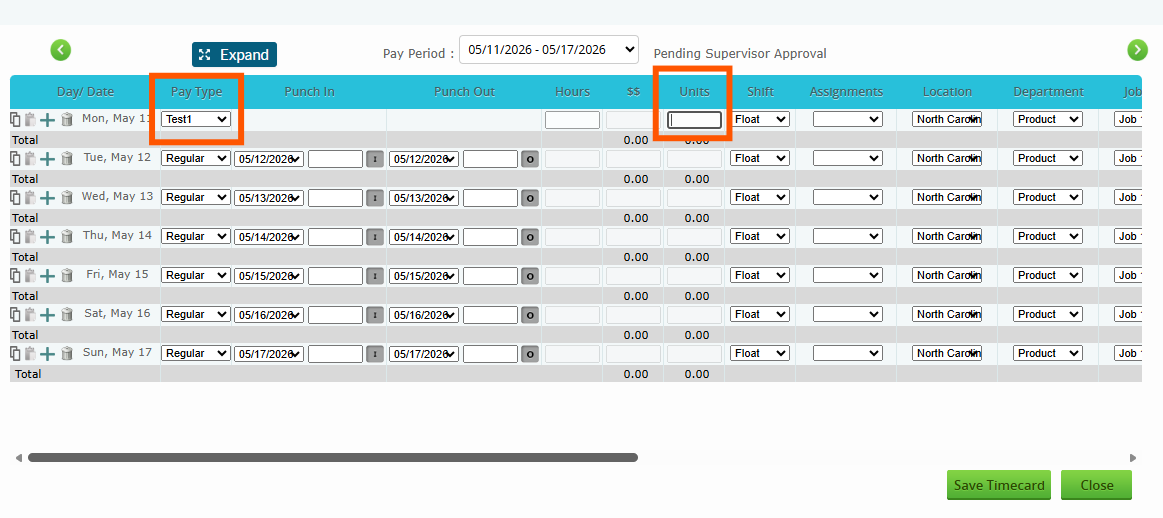
5. A field will appear in the Units column. Enter the appropriate number of Units.
Important: Units are tracked separately from hours and do not calculate together.
Example: An employee may have 8 worked hours and 12 Units recorded on the same timecard.
Any changes made to Units on the timecard — including additions, edits, or deletions — will be recorded in the Timecard Log for auditing purposes.
Managing Unit Rates on Employee Assignments
Unit Rates can also be configured within employee assignments to ensure proper tracking based on the selected pay category.
To update Unit Rates:
1. Navigate to the employee’s Assignment.
2. Edit the Assignment.

3. Enter or update the desired Unit Pay and Bill Rate.
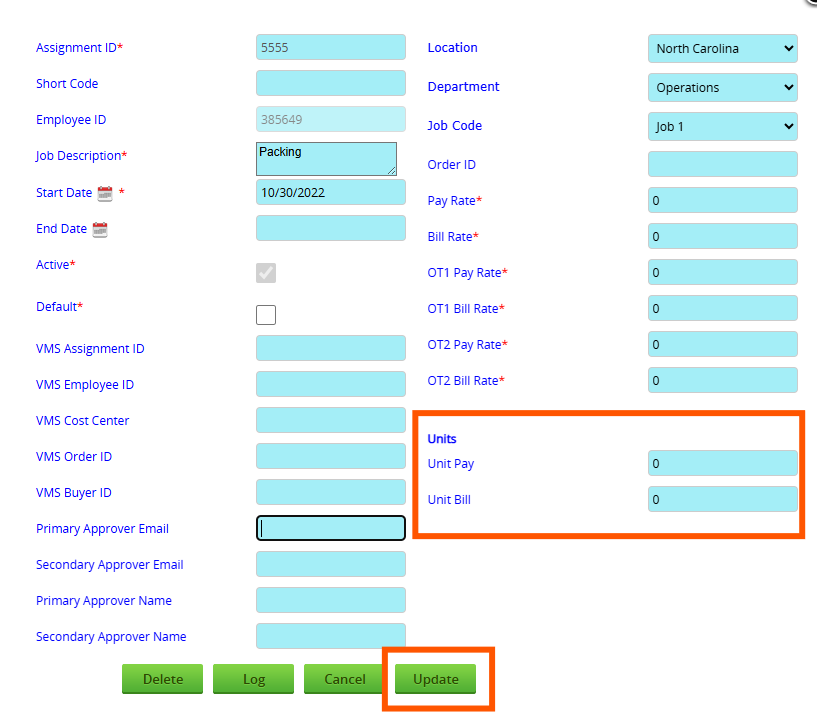
4. Update your changes.
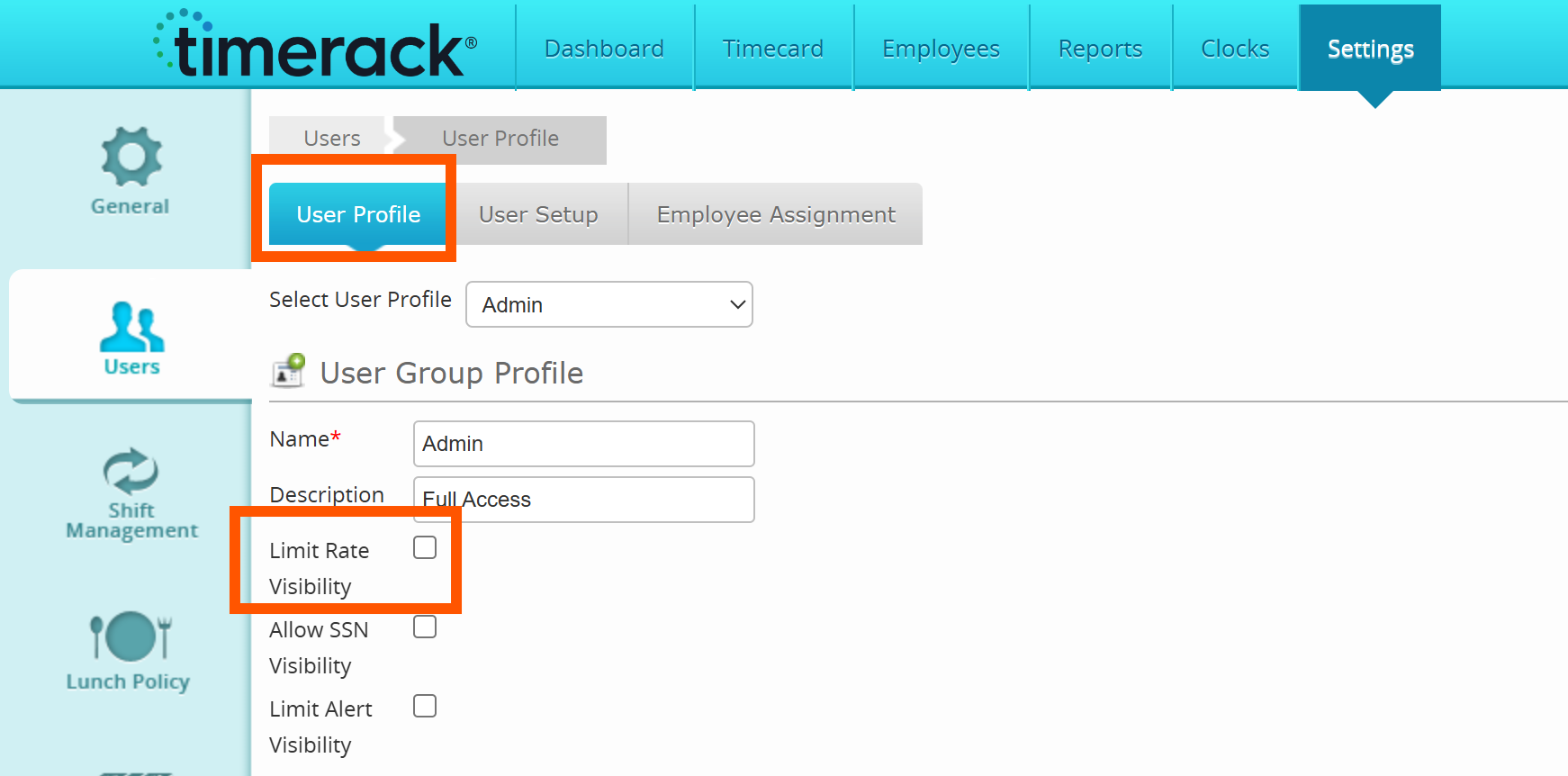
Note: Unit rates can be hidden from view using the "Limit Rate Visibility" checkbox on the User Profile setup page.
Reports with Units & Unit Rates
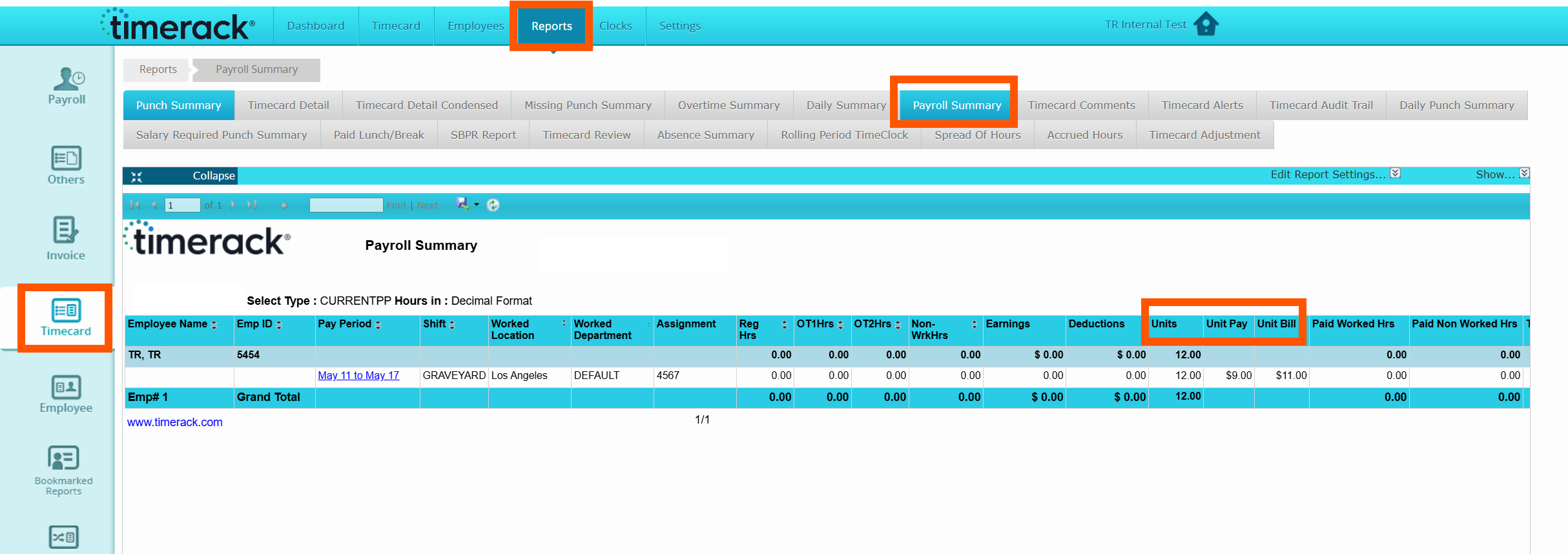
Units and Unit Rates can be shown on the Timecard Detail report and the Payroll Summary report.
1. To pull the Timecard Detail report, navigate to Reports>Timecard>Timecard Detail.
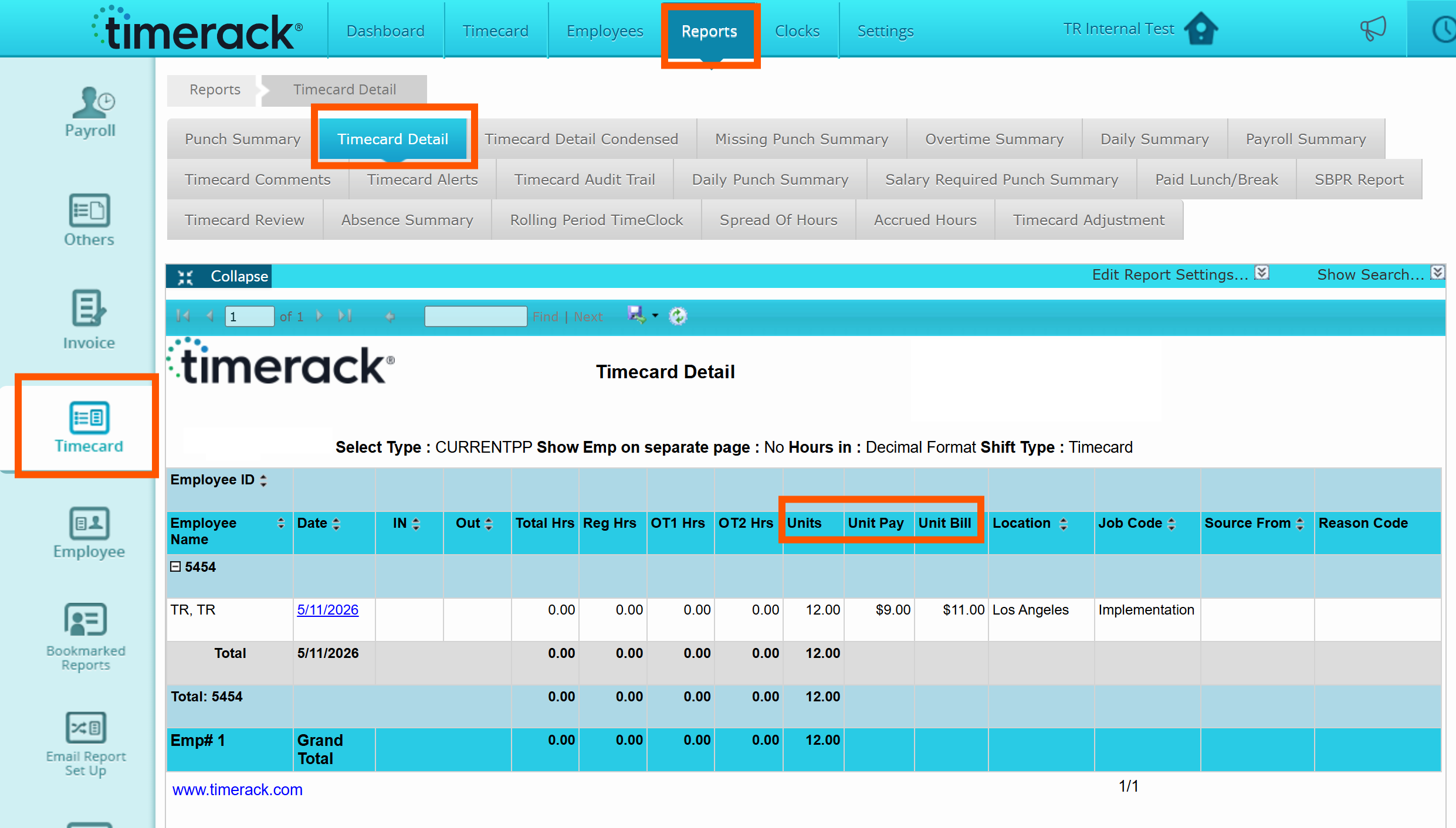
2. To pull the Payroll Summary report, navigate to Reports>Timecard>Payroll Summary.
Enabling Units as Earnings with Value
To allow a pay category to track Units on employee timecards as Earnings with a value:
1. Navigate to the Settings tab.
2. Select General.
3. Select Pay Categories.
4. Locate the Units column.
5. Check the box next to the pay category you would like to track as Units.
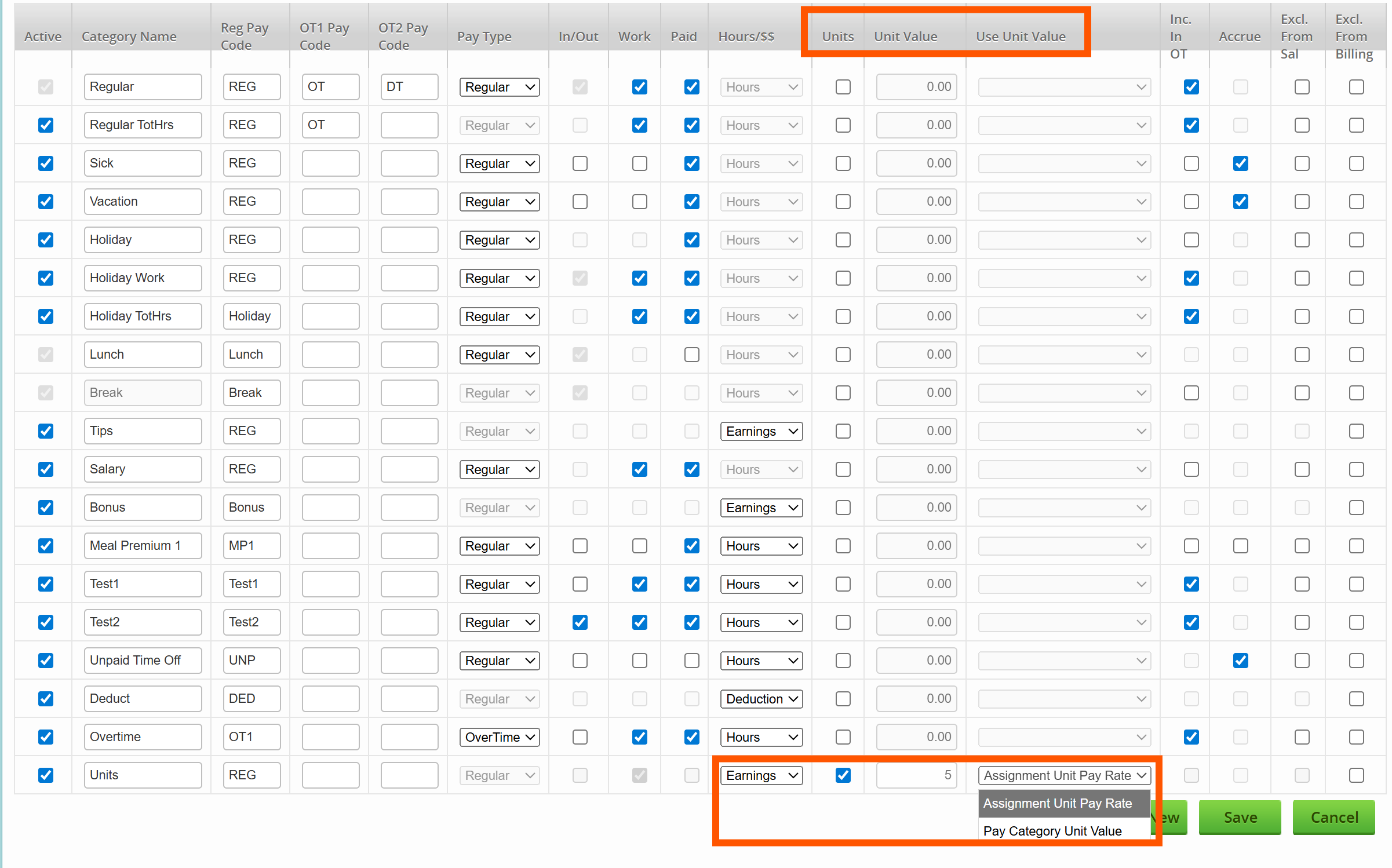
6. Mark the "Hours/$$" column as "Earnings" using the drop-downdown selection box.
7. Enter a Unit Value for that particular pay category.
8. Select from the "Use Unit Value" drop down whether you would like the earnings on the timecard to be calculated based on the Unit Value entered on the pay category or by the Unit Pay Rate from the employee's assignment.
Note: The system will default to using the Unit Value from the Assignment if you do not change the selection.
Calculating Unit Earnings on an Employee Timecard
When units are entered on an employee's timecard, the earnings "$$" column will automatically calculate based on the selection you chose when setting up the pay category (either by using the Pay Category Value or the Assignment Unit Pay Rate).