This article explains how to create and configure an Accrual Policy, including all three accrual formulas.
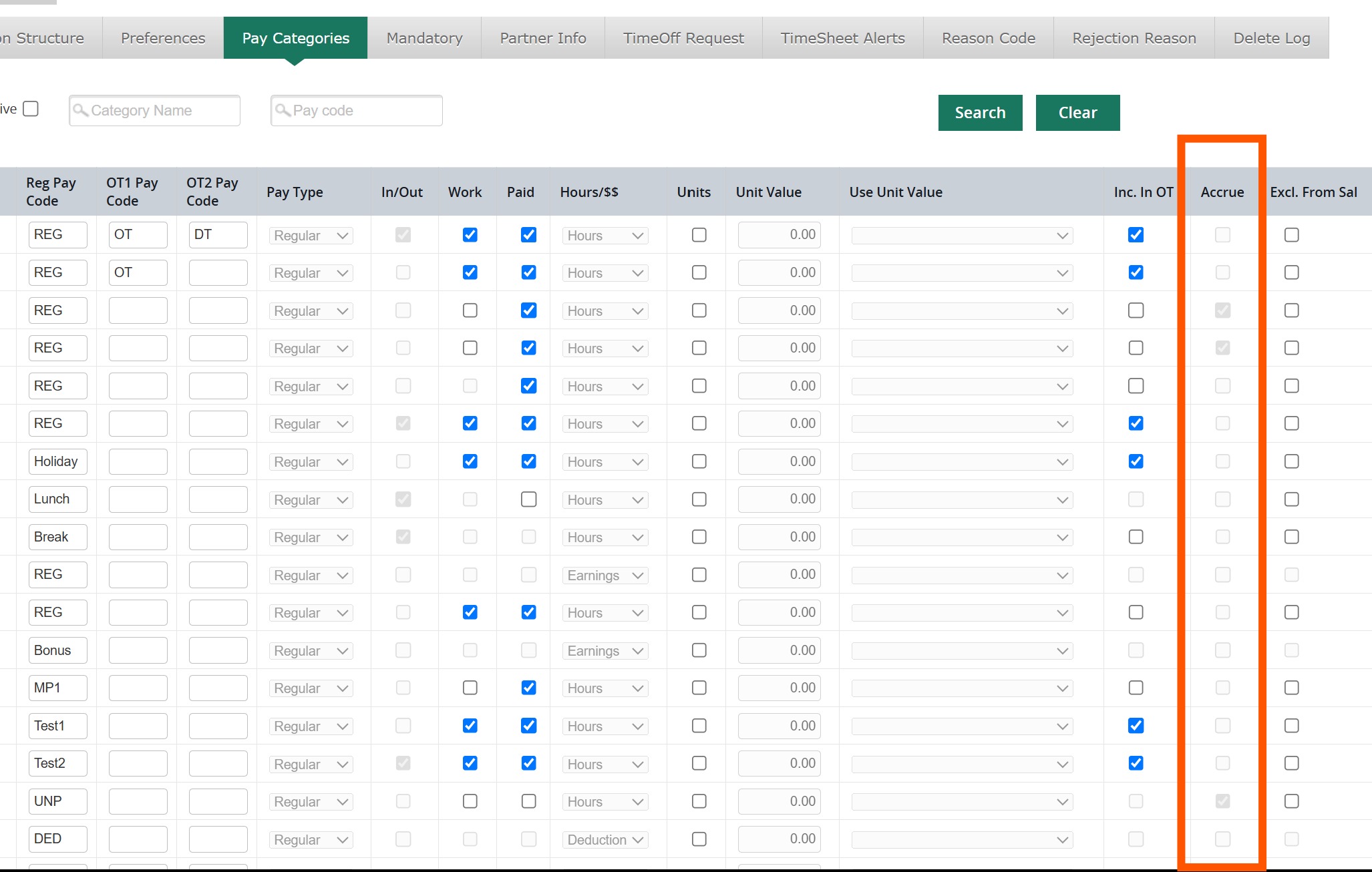
Before you start: Any leave type you want to accrue (e.g., Sick, Vacation, Bereavement) must already be marked Accrue under Settings > General > Pay Categories. Only Pay Categories marked this way will appear when you configure the policy.
Navigate to Accrual Policy Configuration
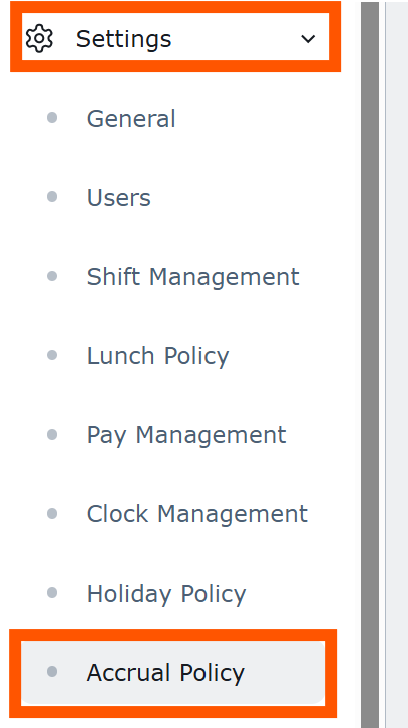
Settings > Accrual Policy (left navigation)
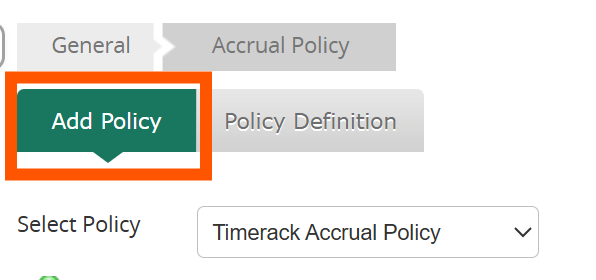
Configuring an Accrual Policy happens in two stages, on two tabs:
| Tab | Purpose |
|---|---|
| Add Policy | Creates the policy shell and sets the year cutoff |
| Policy Definition | Configures the accrual rules for each Pay Category |
Note: In most cases, a single Accrual Policy is sufficient — one policy can calculate multiple leave types (Sick, Vacation, Bereavement, etc.) at once. If you believe your company needs more than one Accrual Policy, consult a Timerack team member before creating additional ones.
Create the Policy (Add Policy)
In most cases, only one Accrual Policy is needed. If your company offers several types of leave (e.g., Sick, Vacation, Bereavement), a single Accrual Policy will calculate all of them. Please consult with a Timerack team member if you believe that more than one Accrual Policy is required in a client portal.
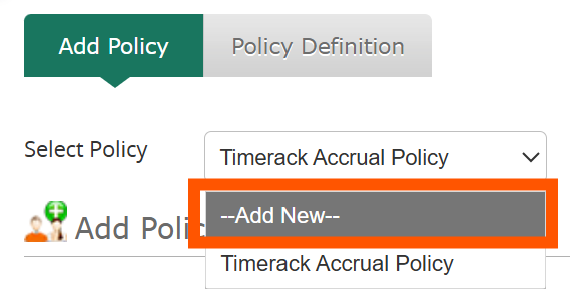
1) On the Add Policy tab, use the Select Policy dropdown menu to select Add New.
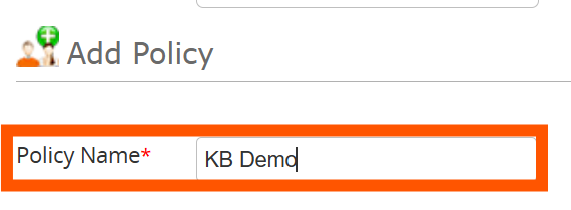
2) Enter a name for the policy.
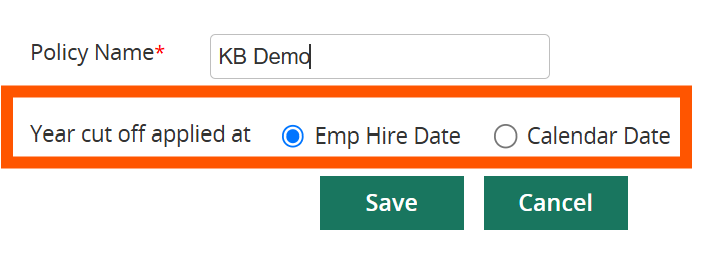
3) Select an option for Year cut off. This determines when the accrual year resets and hours begin accruing fresh. It applies to every Pay Category configured under this policy — you cannot set a different cutoff per Pay Category.
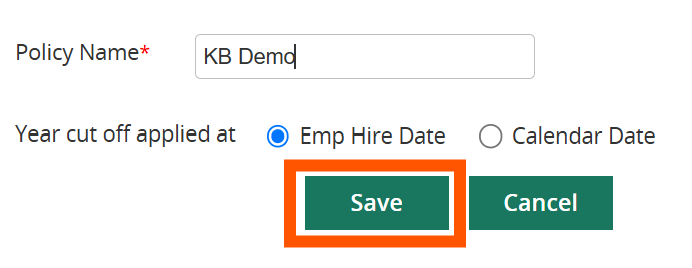
4) Click the Save button.
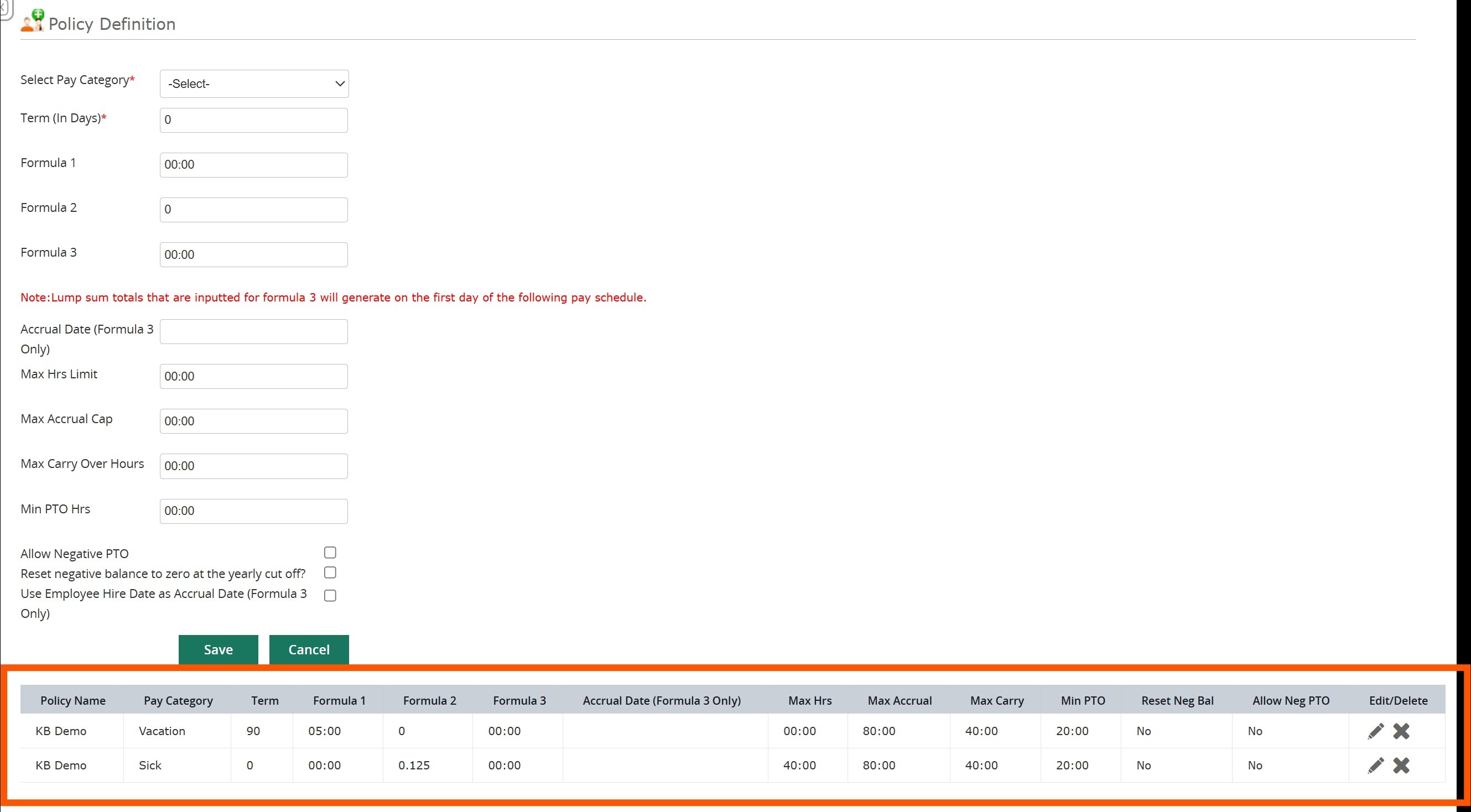
Define the Policy (Policy Definition)
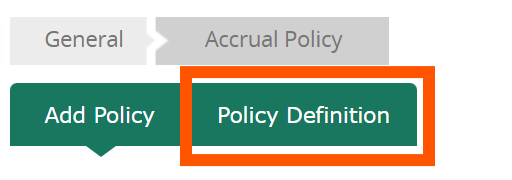
1) After saving the new Policy, select the Policy Definition option.
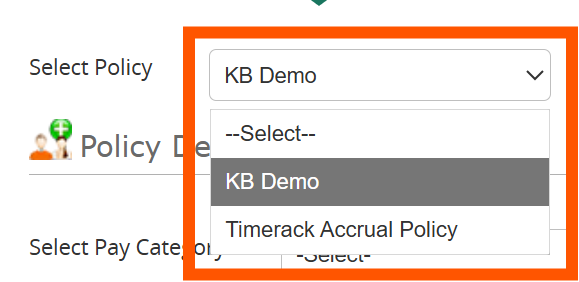
2) Use the Select Policy dropdown menu to select the policy.
3) Use the Select Pay Category dropdown menu to select a Pay Category to configure. Each Pay Category must be configured separately — if you offer Sick, Vacation, and Bereavement, you'll repeat this section three times.
| The dropdown list displays Pay Categories that are marked Accrue in Settings>General>Pay Categories. | 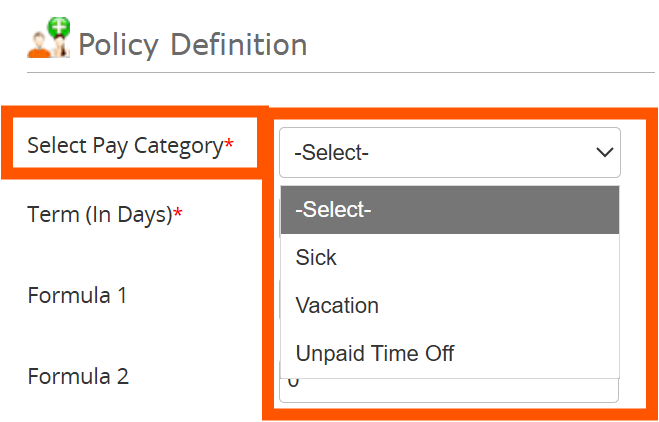 |
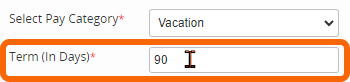
4) In the Term (In Days) field, enter how many days after hire that the Policy will take effect. Many companies have a waiting period (e.g., 90 days). If there is no waiting period, enter "0."
5) Calculations for each accruable Pay Category are done based on one of three formulas. Which formula is applicable depends on the company's policy. It is recommended that users reference the leave policies outlined in the company's handbook to determine which formula should be used for each Pay Category.
Use only one formula per Pay Category.
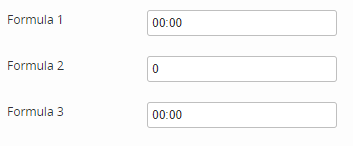
Choosing a Formula
| Formula 1 | Formula 2 | Formula 3 | |
|---|---|---|---|
| What it does | Accrues a fixed number of hours every Pay Period | Accrues hours proportional to hours actually worked | Grants a one-time or recurring lump sum of hours |
| Typical use case | Salaried employees with a flat monthly/biweekly accrual (e.g., "8 hours of vacation per pay period") | Hourly employees who accrue based on time worked (e.g., "0.04 hours of sick time per hour worked") | Annual front-loaded PTO grants, e.g., "40 hours on your work anniversary" |
| Key input | Fixed hours per Pay Period | Decimal multiplier × hours worked | Lump sum + accrual date |
Formula 1
Use this when employees accrue the same number of hours every Pay Period, regardless of hours worked. 
|  | |
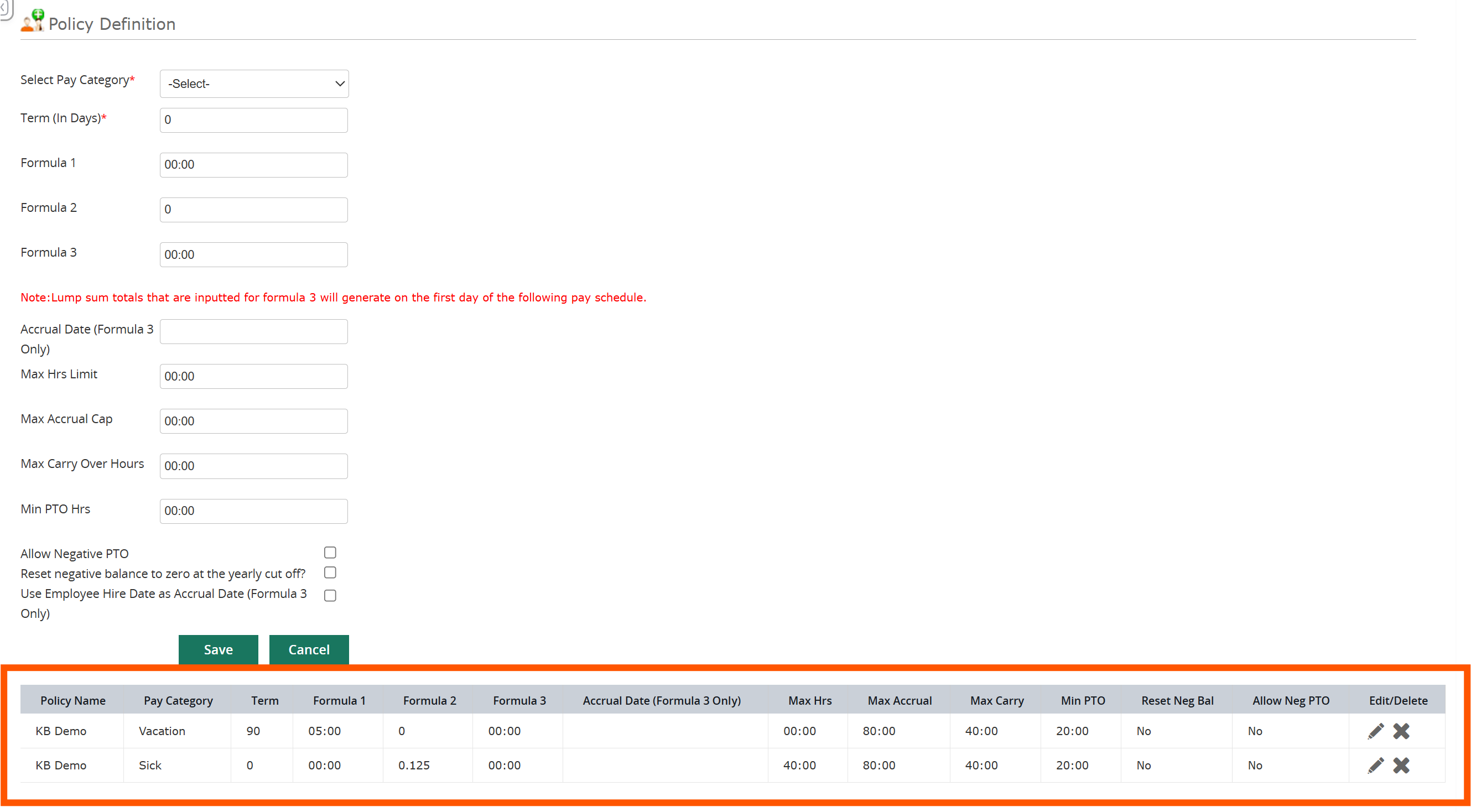
Max Accrual Cap is the maximum balance of unused hours that an employee can have at any given time for the selected Pay Category. If the Max Accrual Cap is reached, additional hours will not accrue until hours are used and the balance for the applicable Pay Category drops below this number. If no Max Accrual Cap is required, enter 00:00. | 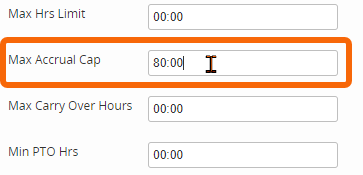 | |
| Max Carry Over Hours is the maximum number of unused accrued hours permitted to roll over to the next year at the Year cut off date. If no Max Carry Over Hours are required, enter 00:00. | 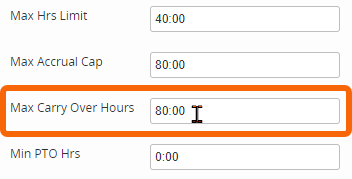 | |
| Min PTO Hours is the minimum number of hours an employee must work in a Pay Period to receive the specified accrual hours for the applicable Pay Category. If no Min PTO Hours are required, enter 00:00. | 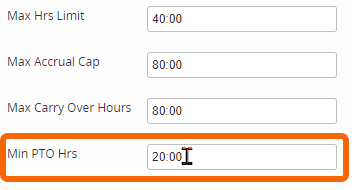 |
| Allow Negative PTO permits an employee to submit a request for more hours than are available in their balance. |  |
| Reset negative balance to zero at the yearly cut off updates leave balances to zero hours if the balance is negative (less than 0) when the new accrual year begins. |  |
Click the Save button. |  |
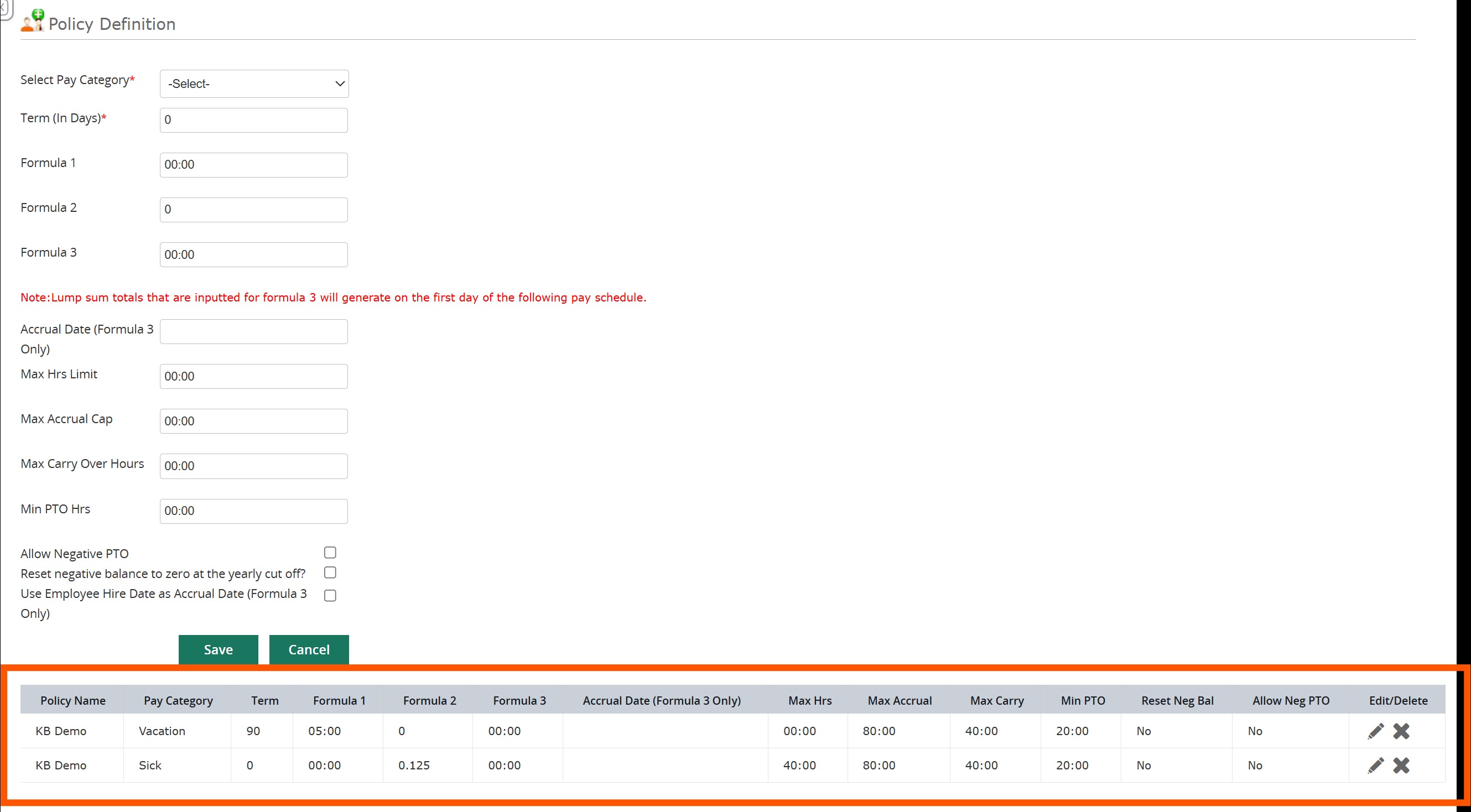
Saved Policy rules display at the bottom of the page.
Formula 2
The value entered for Formula 2 represents how many hours an employee accrues based on actual hours worked per Pay Period. The accrual amount is calculated by multiplying an employee's actual hours worked by this value. The value entered here is typically a decimal (a fraction of one hour).

| 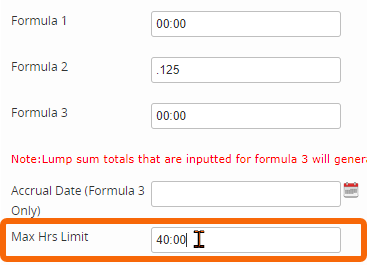 | |
Max Accrual Cap is the maximum balance of unused hours that an employee can have at any given time for the selected Pay Category. If the Max Accrual Cap is reached, additional hours will not accrue until hours are used and the balance for the applicable Pay Category drops below this number. If no Max Accrual Cap is required, enter 00:00. | 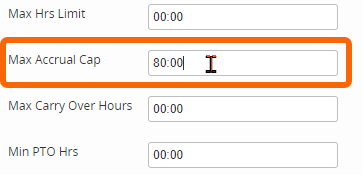 | |
| Max Carry Over Hours is the maximum number of unused accrued hours permitted to roll over to the next year at the Year cut off date. If no Max Carry Over Hours are required, enter 00:00. | 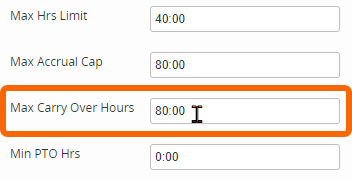 | |
| Min PTO Hours is the minimum number of hours an employee must work in a Pay Period in order to accrue any time for the applicable Pay Category. If no Min PTO Hours are required, enter 00:00. | 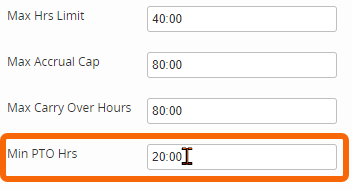 | |
| Allow Negative PTO permits an employee to submit a request for more hours than are available in their balance. |  | |
| Reset negative balance to zero at the yearly cut off updates leave balances to zero hours if the balance is negative (less than 0) when the new accrual year begins. |  | |
Click the Save button. |  | |
| A popup window will display to confirm that you want to recalculate timecards. Select an option and then click the Update button. | 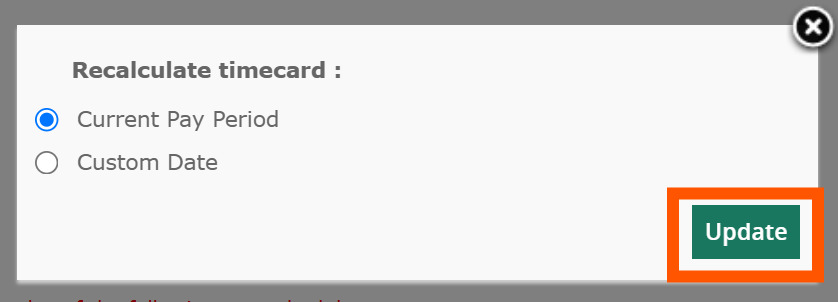 | |
| 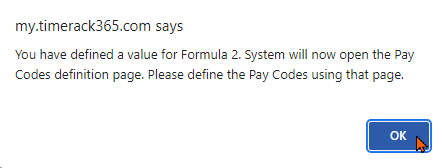 | |
A popup window will display. Mark the checkboxes next to the Pay Categories to count toward accruals. Hours for the selected Pay Categories will be included in the accrual calculation. | 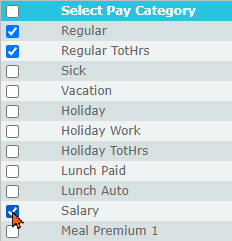 | |
| Click the Save button. | 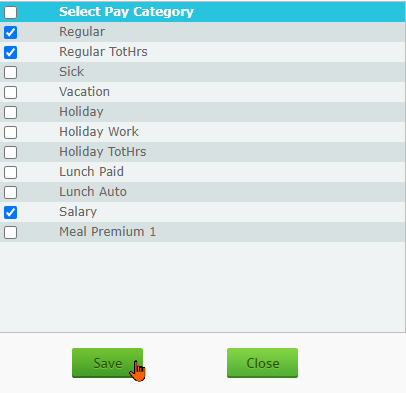 | |
| A popup window will display to confirm that you want to recalculate timecards. Select an option and then click the Update button. | 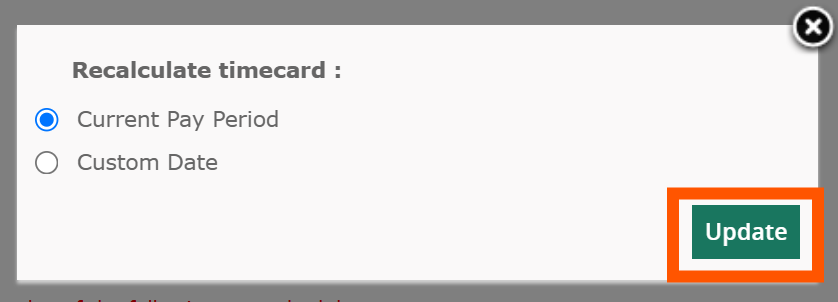 | |
| A message will display near the top of the page that the Pay Category selections were saved successfully. Click OK to dismiss the message. | 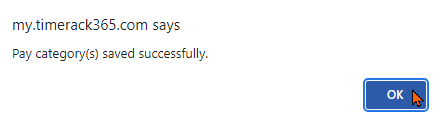 | |
| Click the Close button to exit the Pay Category window. | 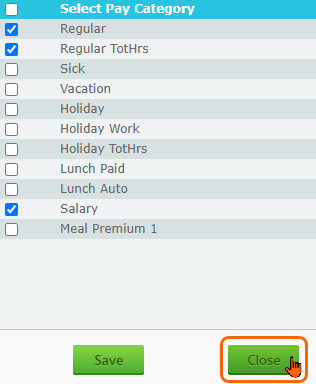 |
Saved Policy rules display at the bottom of the page.
Formula 3
The value entered for Formula 3 represents a lump sum of hours an employee receives. When Formula 3 is used, the hours become available at the beginning of the next Pay Period after the Policy is applied to the employee. Formula 3 allows users to front-load a specified number of hours to multiple employees' balances all at once rather than entering an Opening Balance on each Employee Profile individually.

Accrual Date is the only field applicable to Formula 3; enter "0" for all others. | 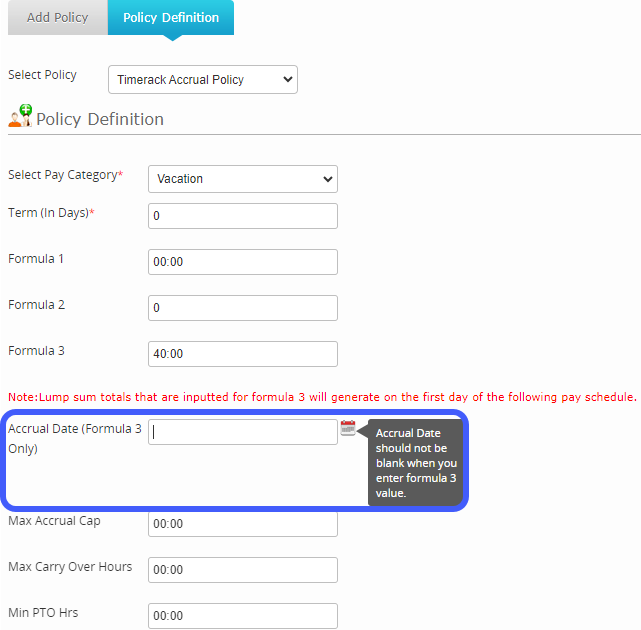 |
| Click the calendar icon to select an Accrual Date. Although an Accrual Date must be entered for the rule to save, the Policy will not use this date to apply the balance. It is recommended to enter the current date in this field. | 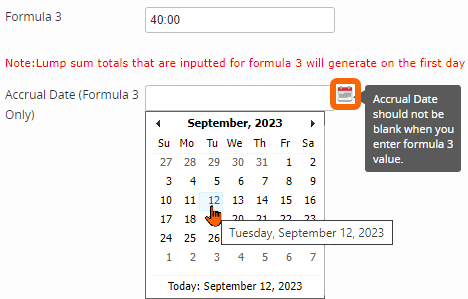 |
The hours will be added to balances at the beginning of the next Pay Period after the Policy is applied to the employee(s).
| 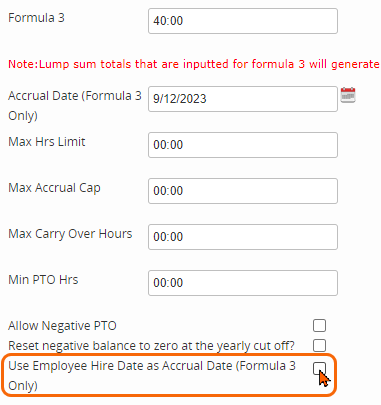 | |
| When Use Employee Hire Date as Accrual Date (Formula 3 Only) is selected, the checkbox Apply Once, X Days After Hire Date (Formula 3 Only) will appear. | 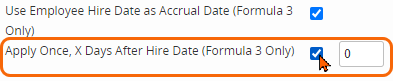 | |
| Select Apply Once, X Days After Hire Date (Formula 3 Only) to apply the accrual only once. A date will be calculated based on the value entered for how many days after Hire Date the accrual should apply. The accrual will apply at the Pay Period during which this calculated date occurs. | 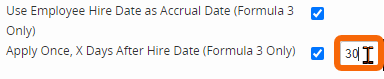 |
Click the Save button. |  |
Saved Policy rules display at the bottom of the page.