
If a company is using a staffing software that is not actively integrated with Timerack, users can import employee assignment information manually from a CSV file. Timerack will provide a file template as part the Onboarding process.
This article explains how to manually import employee assignments into the client portal and how to resolve common errors that occur with Assignments data.
Import the Assignments File
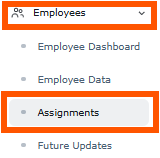
1) Navigate to the Assignments page by clicking the View Assignments button on the client Dashboard. You can also navigate to Assignments by selecting Employee in the navigation bar on the left and then choosing the Assignments option.
 |  |
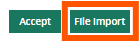
2) Click the File Import button.
3) To retrieve a file template, click to download sample file. A CSV file with the applicable columns will download to your device.

4) Add data in the applicable columns and then save the file to your device.
| ClientID | To find ClientID, hover your pointer over the Client Name in the Partner portal. ClientID is the four-digit number following "cid=" in the URL in the lower left of the web browser window. Only users who have access at the Partner level can view the Partner dashboard. 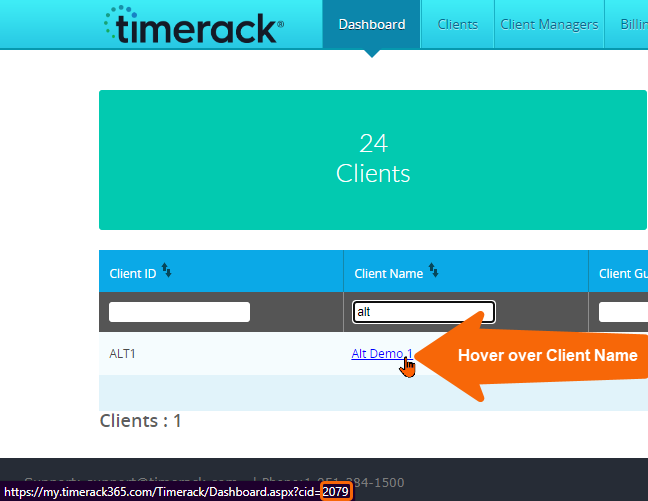 |
| ClientName | ClientName is the name of the client portal in Timerack.  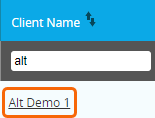 |
| TimeRackClientKey | Find TimeRackClientKey in the Client ID field on the Partner dashboard. Only users who have access at the Partner level can view the Partner dashboard.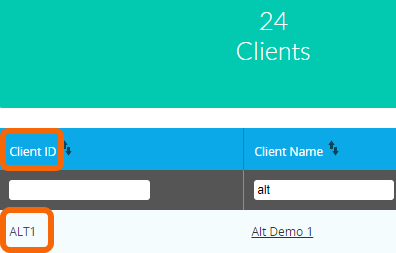 |
5) Click the Choose File button to browse files on your device.

6) Locate the desired file and then click Open to select it.

7) Click the Upload button.

8) A message will display near the top of the page that the import was successful.
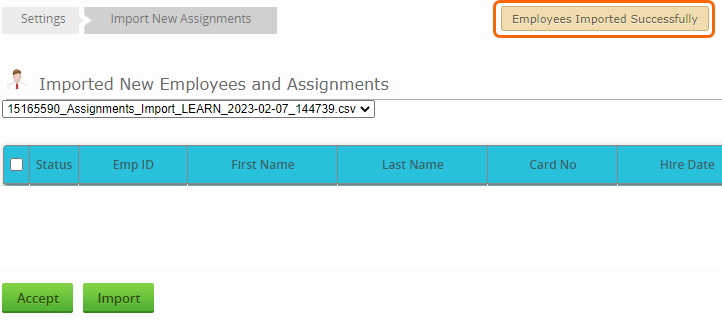
9) Verify that there are no errors.
If there are no problems with the imported data, the page will appear blank, and the import process is complete.
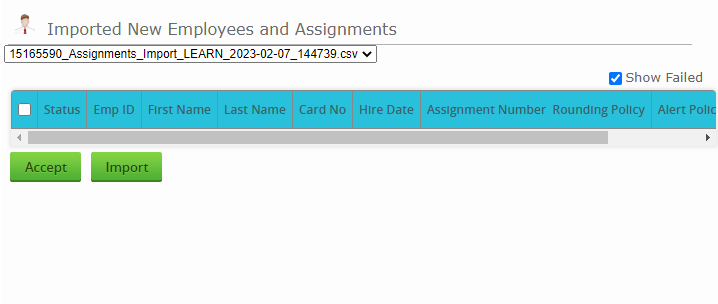
If there is a problem with any of the imported records, a red notification bubble will appear in the Status column.
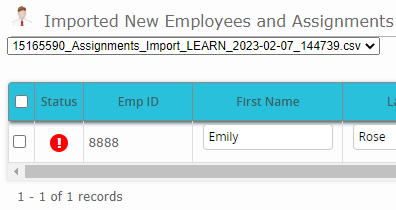
Continue reading to learn how to resolve common errors.
Fix Data Errors
Error Type: Card No. displays "-1"
Cause: No employee PIN has been transmitted to Timerack via the integration.
Fix: Enter the Employee PIN in your ATS and then wait for the next update from the integration, or create a number and enter it in the Card No. field. If your ATS uses a portion of the employee's SSN for Card No., this error will occur if no SSN exists for the employee.

Error Type: Duplicate Card Number
Cause: Employee PIN is the same as another employee in the portal.
Fix: Modify the PIN in your ATS and then wait for the next update from the integration, or modify the Card No. field.

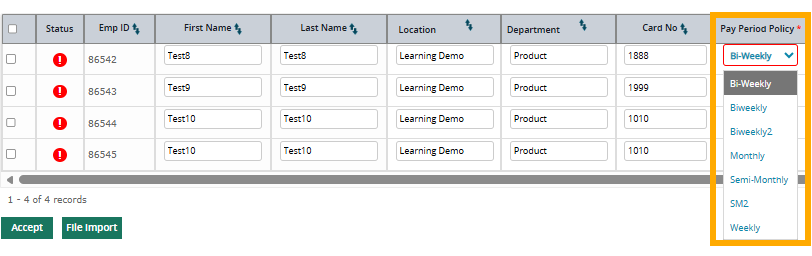
Error Type: Multiple Policies
Cause: Multiple policies exist in the portal and Timerack does not know which one is applicable to the employee.
Fix: Use the dropdown arrow to select the applicable policy.
Final Step
Select the records that you want to accept into Timerack by marking the checkbox(es) in the first column and then scroll to the bottom of the page and click the Accept button. | 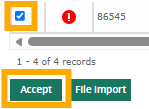 |